

Moneybird
Moneybird Integration
BillPipe integrates seamlessly with Moneybird, allowing you to automatically synchronize your customers and push sales invoices directly into your Moneybird administration.
1. How to connect BillPipe and Moneybird
To start syncing data, you first need to connect your Moneybird account to your BillPipe workspace.
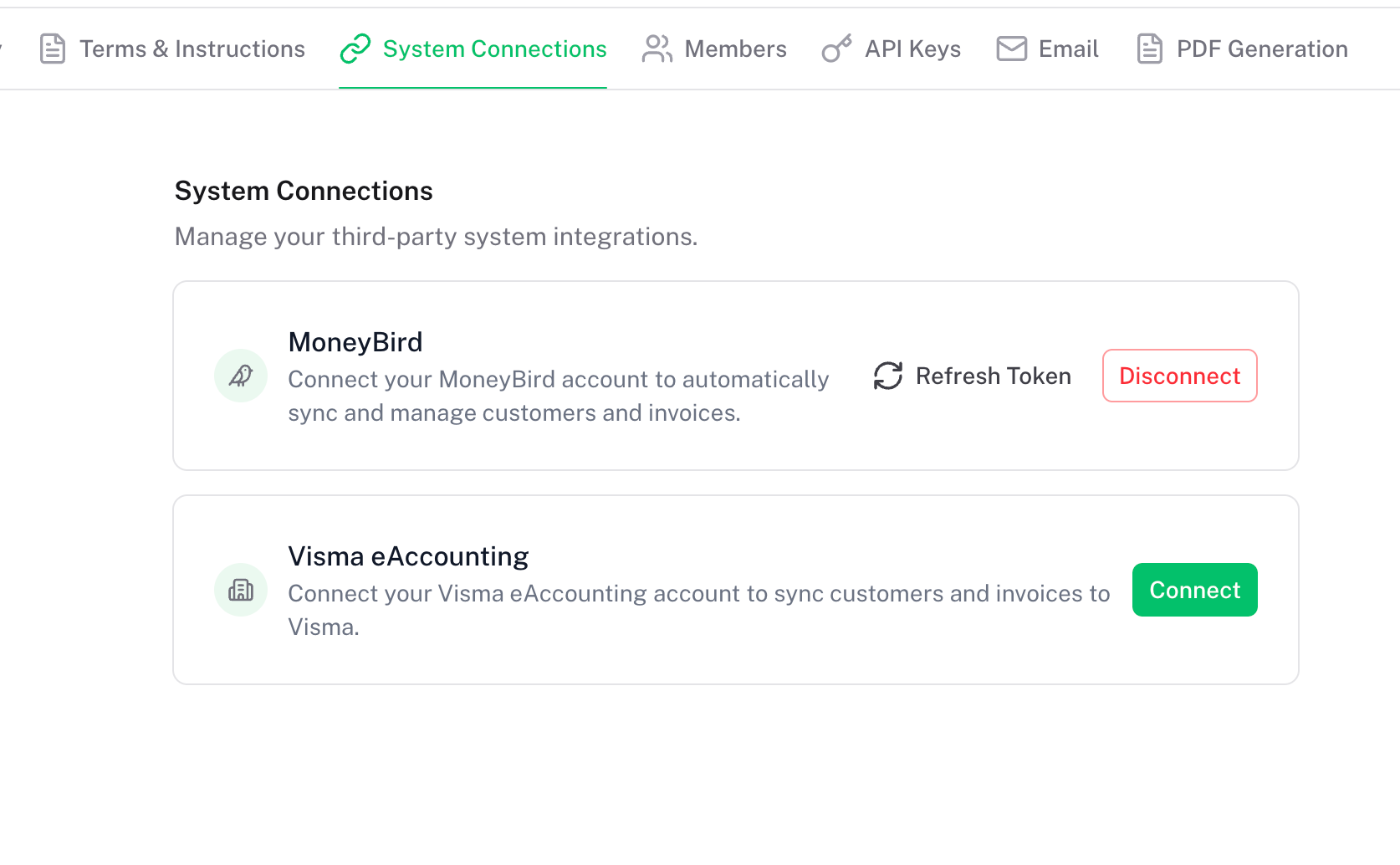
- Open your BillPipe Dashboard and navigate to Integrations.
- Under the Moneybird provider section, click Connect.
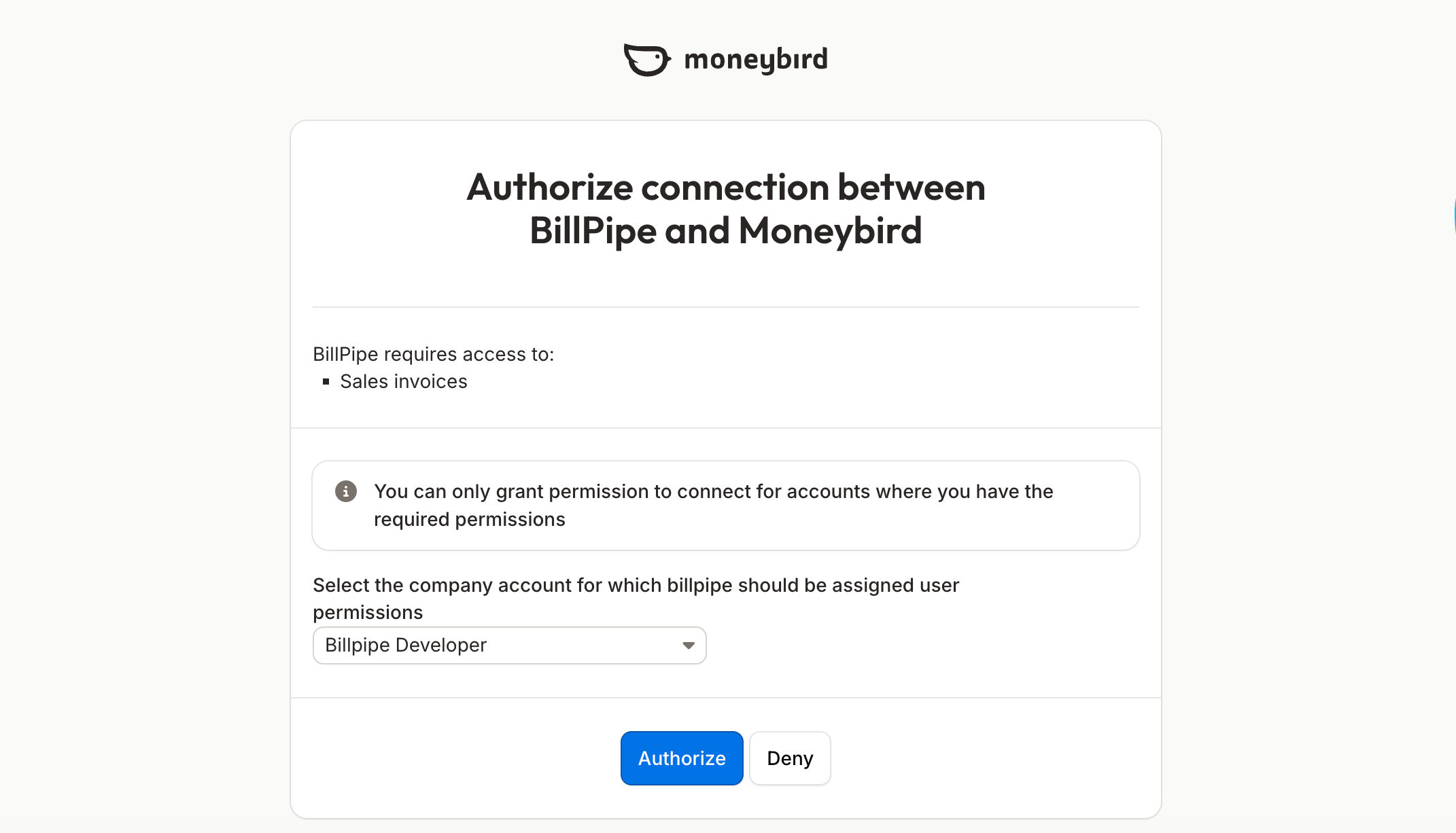
- You will be redirected to Moneybird. Log in and authorize the BillPipe application to access your administration.
- Once authorized, you will be redirected back to BillPipe, and your connection will show as active.
2. How to import customers
You can pull your existing Moneybird contacts directly into your BillPipe workspace:
- Navigate to the Customers section in your dashboard.
- Click Import at the top right.
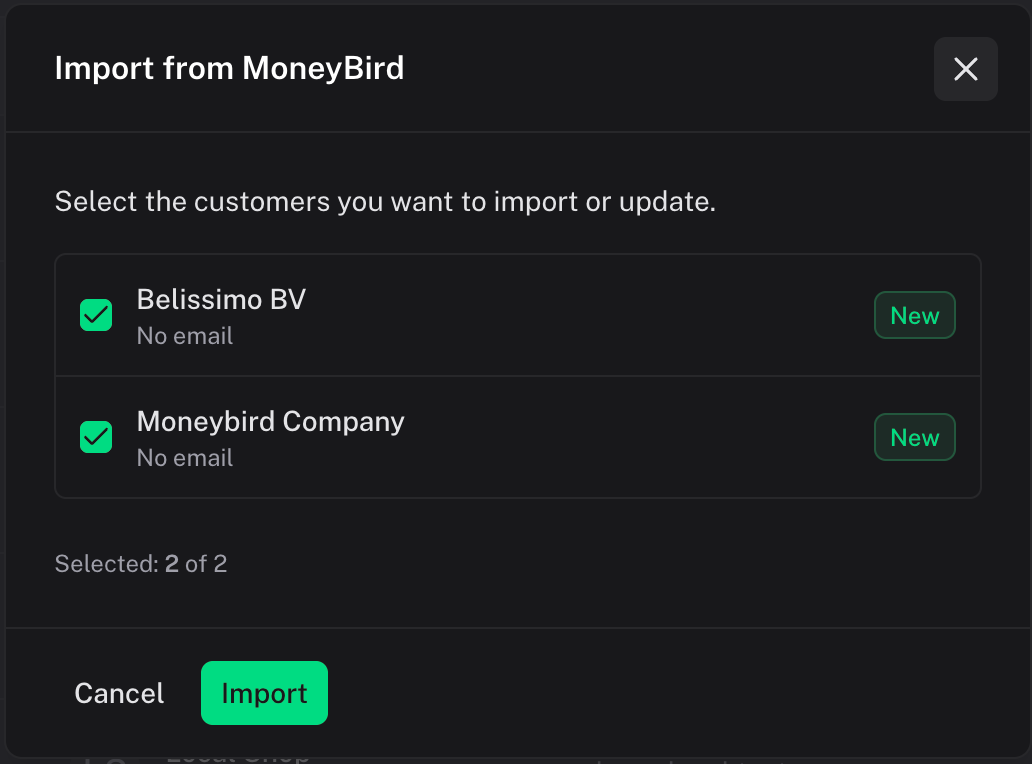
- Select Moneybird from the integration options.
- BillPipe will list all your connected contacts, allowing you to bulk update or create new customer records seamlessly natively in BillPipe.
3. How to create customers
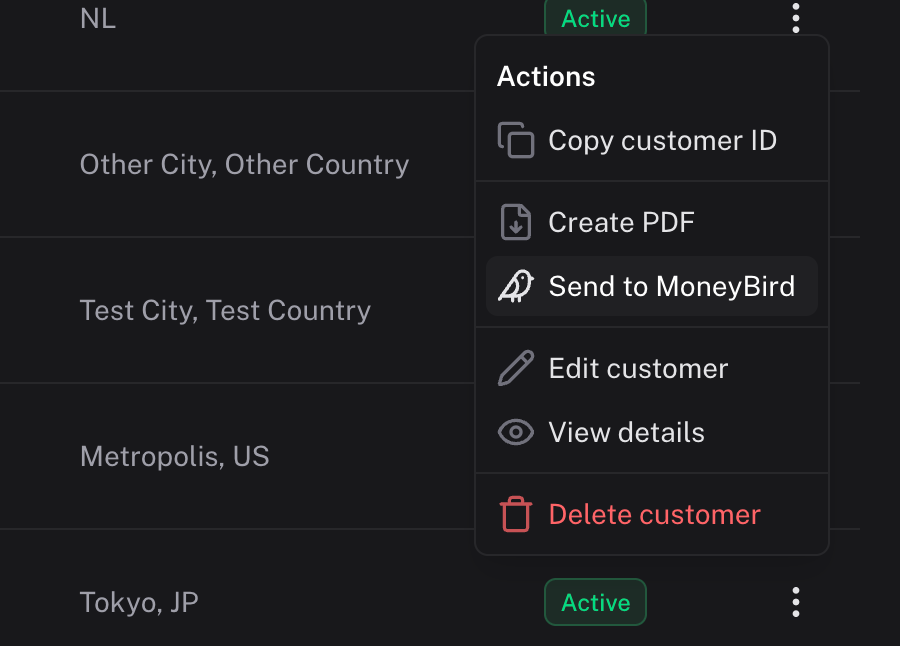
You can push any customer from BillPipe directly into Moneybird.
- Navigate to the Customers page.
- Select one or more customers.
- Click the Send to... dropdown menu and select Send to MoneyBird.
- BillPipe will either update an existing contact in Moneybird or create a brand new contact with all corresponding details (Name, Address, VAT Number, Email, etc.).
4. How to create invoices
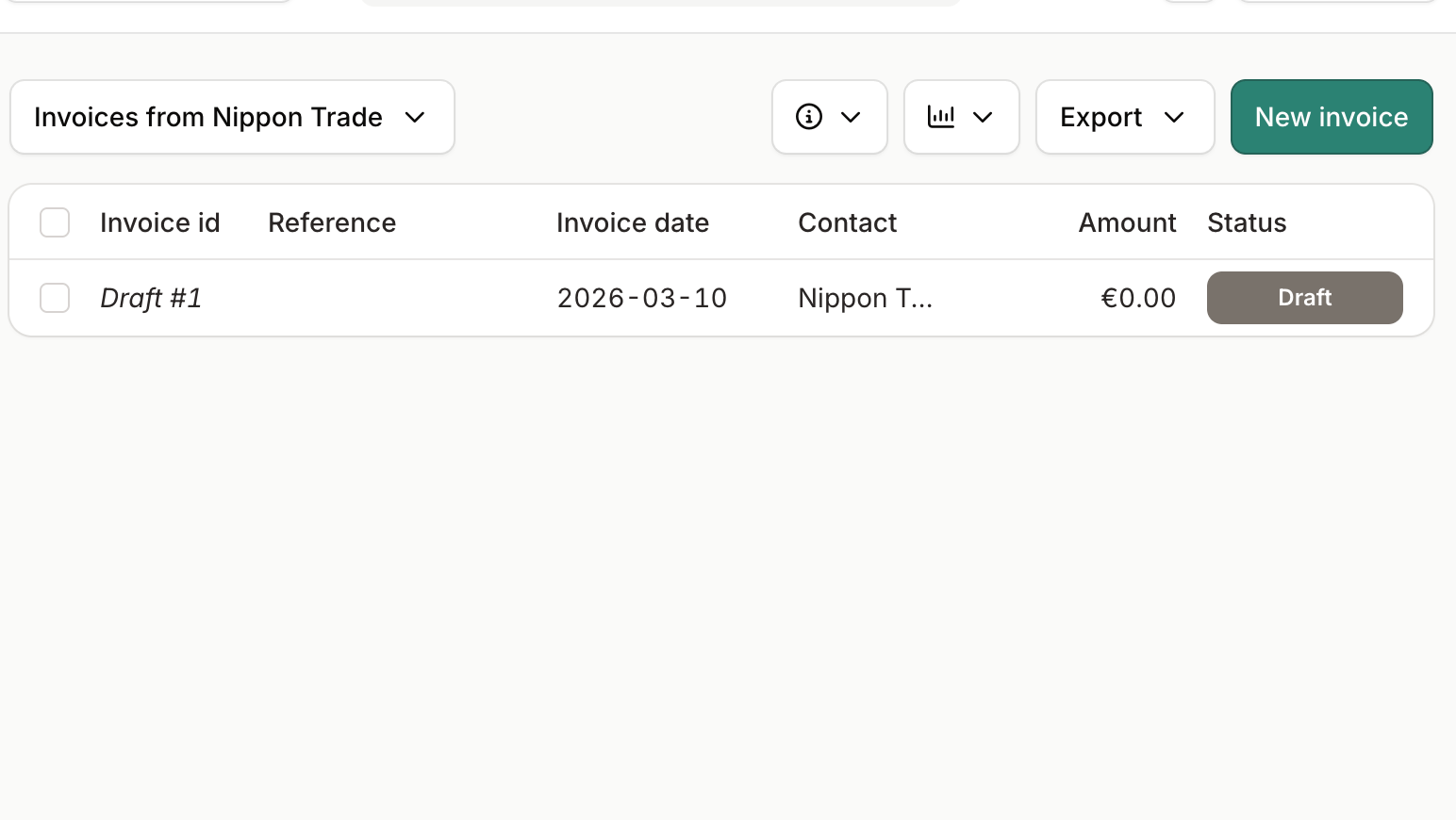
Once your workflow generates invoices in BillPipe, you can push them directly as Draft Sales Invoices into Moneybird.
- Navigate to the Invoices page.
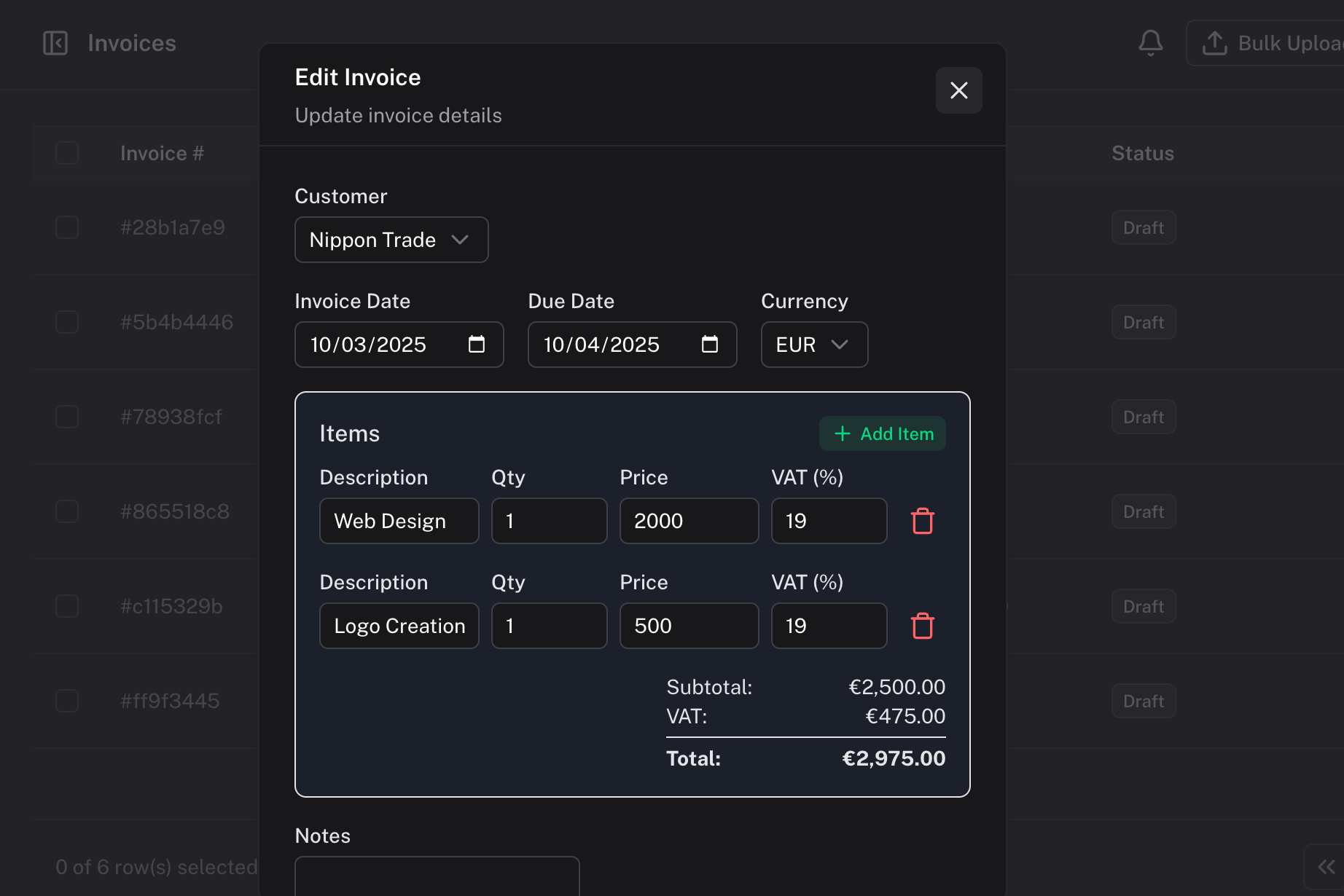
- Click to create a new invoice or select an existing one.
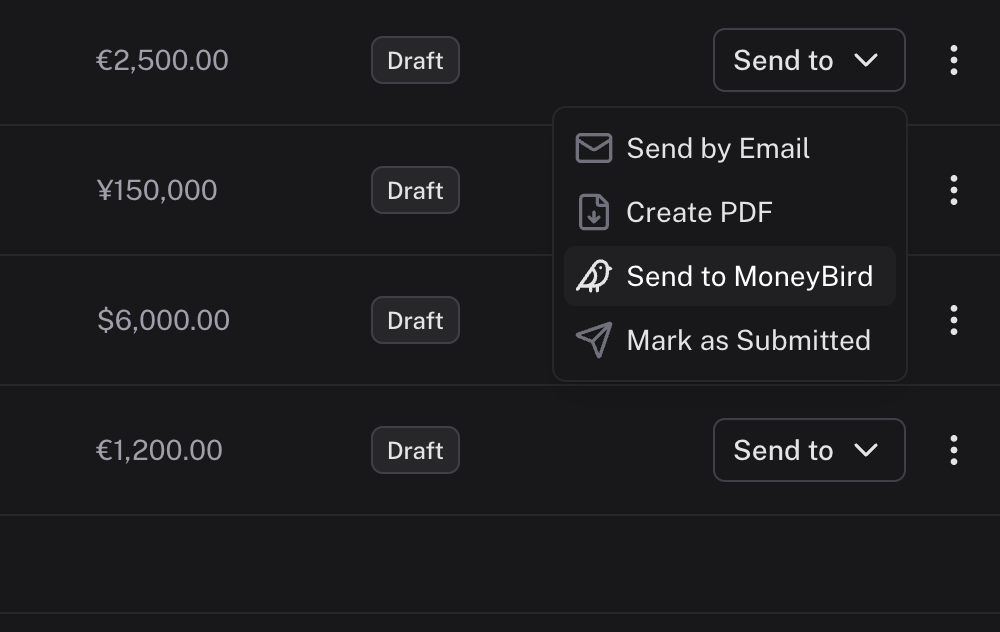
- Click the Send to... dropdown (or the options menu on a specific invoice) and choose Send to MoneyBird.
- We will calculate the totals and push the line items (description, quantity, price) to Moneybird.
5. Specifics to Moneybird
!NOTE Moneybird Token Refresh Moneybird integration tokens in BillPipe are valid for 10 years. Behind the scenes, we automatically refresh your session so you won't have to reconnect unless you explicitly revoke access in Moneybird.
!IMPORTANT Invoices sent to Moneybird are initially created in a Draft state. You will still need to approve and send them from within your Moneybird administration unless you rely on external workflow automation.